
Images are replaceable placeholders. Verify exact steps against the installed application or firmware before publishing.
How smartphone recording works
The controller sends electrical telemetry through compatible Bluetooth. Your phone can add GPS location data. VESC Tool saves a log that you can later open in BMSDock.
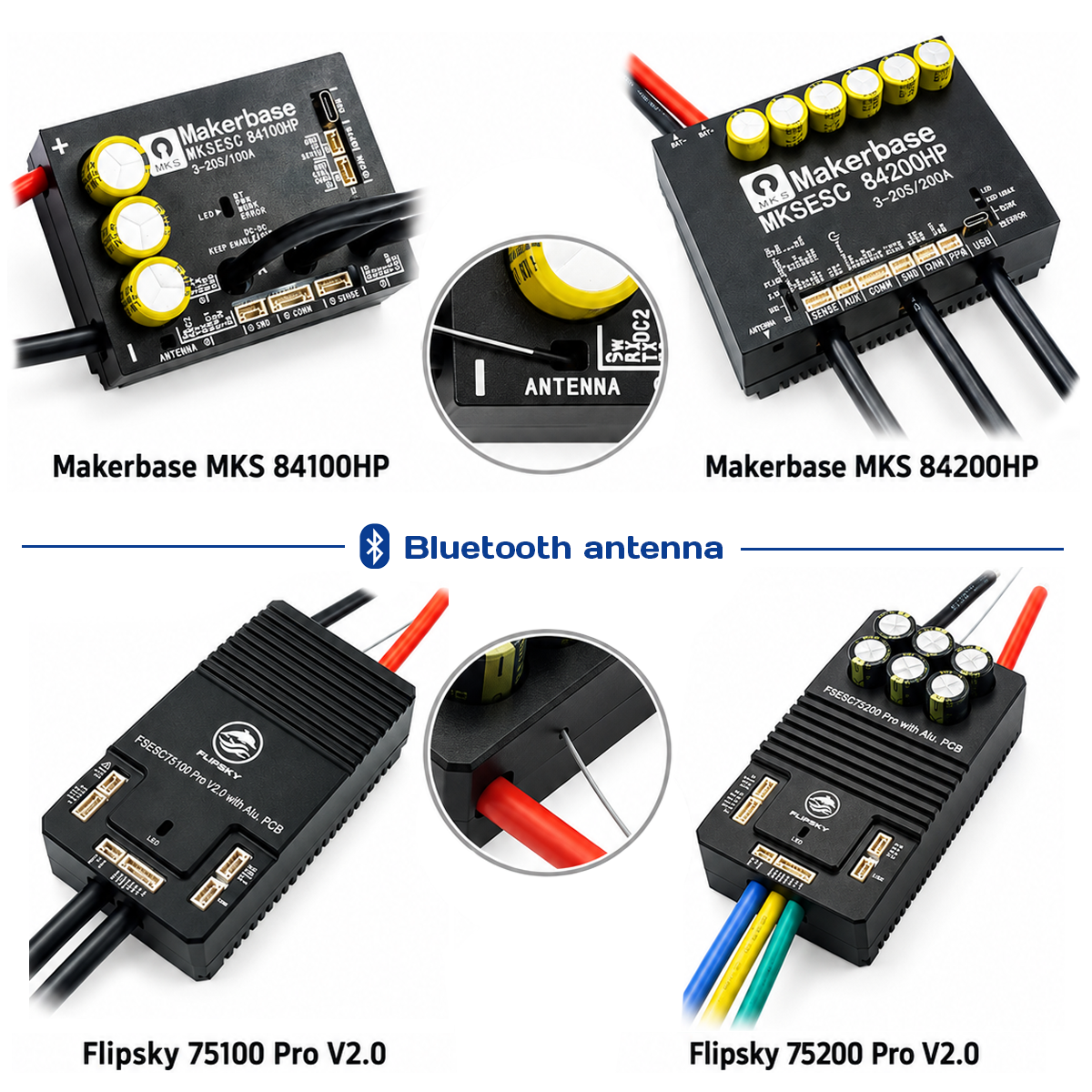
Prepare the Bluetooth connection
A controller without compatible built-in Bluetooth needs an external module. Check UART wiring and settings for your specific controller.
Connect with VESC Tool
Turn on the controller, launch VESC Tool and connect through Bluetooth. Confirm that live telemetry values appear.
Enable location if needed
Allow location access if you want a route on the map. Wait for a position fix before recording. Electrical telemetry does not inherently require GPS.
Record, stop and export
Find the logging controls in your app version and confirm recording is active. After the ride, stop logging and export the file.
Record independently of a phone
VESC Express can receive VESC telemetry and save it to a microSD card. Supported features depend on hardware, firmware and settings.
Connect the hardware
Connect Express to a supported VESC telemetry source. Optionally connect an external GNSS receiver and verify the exact pinout.
Configure LogUI sources
Select Local Values and any needed CAN Values, check microSD storage and logging frequency. Menu names can vary by release.
Decide whether GNSS is required
With GNSS append enabled, some configurations may wait for a satellite fix. For electrical-only logs, disable the GNSS append requirement so logging need not wait for coordinates.
Start logging and retrieve the file
Verify recording actually started and data is written to microSD. Stop logging properly and copy the saved file.
Open in BMSDock
After the ride, save the file and open the BMSDock analyzer. Upload the log to view the available charts, measurements and route.
Troubleshooting
No route on map
Check whether your file contains GPS coordinates. Speed and route data are not the same thing.
File will not open
Confirm recording was completed and that the exported file contains actual supported data.